
Mocks
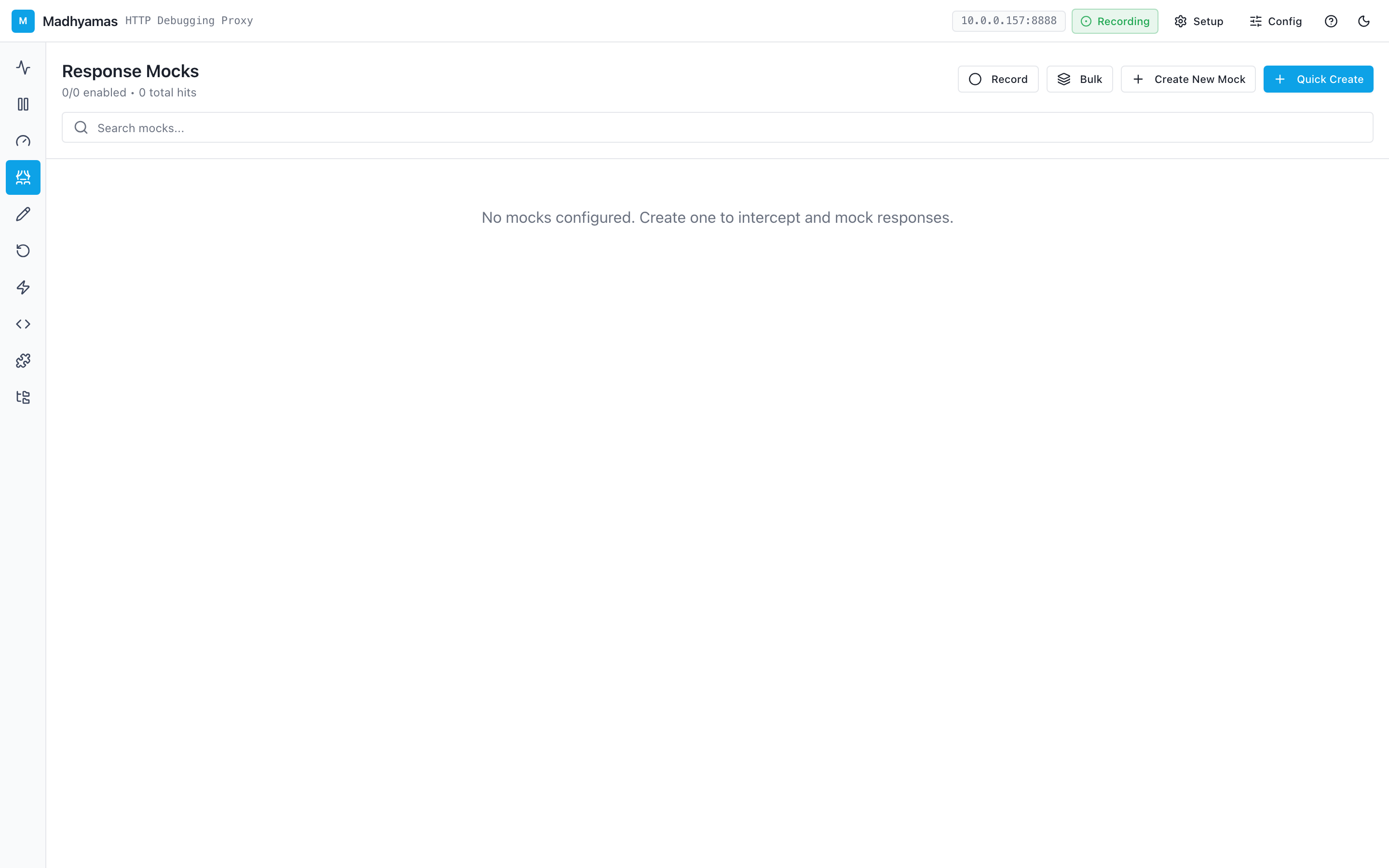
Mocks let you intercept requests and return fake responses without hitting the real server. This is perfect for testing how your app handles different API responses, developing against APIs that don't exist yet, or testing edge cases that are hard to reproduce with real services.
How Mocks Work
When a request matches a mock rule:
- Madhyamas intercepts the request before it reaches the server
- It returns the mock response you defined (status code, headers, body)
- The real server is never contacted
- The traffic appears in the traffic list with a "mocked" indicator
Mocks are evaluated after rewrites but before breakpoints in the interception pipeline.
Creating a Mock
- Navigate to the Mocks view using the left navigation rail
- Click Add Mock
- Configure the mock:
Match Criteria
| Field | Description |
|---|---|
| URL Pattern | Wildcard pattern to match the request URL (e.g., */api/users/*) |
| Method | HTTP method to match (GET, POST, etc.) — leave empty for any |
| Request Headers | Optional header match conditions |
| Request Body | Optional body match condition |
Response Configuration
| Field | Description |
|---|---|
| Status Code | HTTP status code to return (e.g., 200, 404, 500) |
| Response Headers | Custom headers to include in the response |
| Response Body | The response body (text, JSON, XML, etc.) |
| Content Type | The Content-Type header value |
| Delay | Optional delay in milliseconds before responding |
- Click Save to activate the mock
Mock Collections
Organize related mocks into collections for easy management. For example, you might have:
- A "User API" collection with mocks for login, profile, and logout endpoints
- An "Error Scenarios" collection with 500, 502, and 503 responses
- A "Development" collection with mock data for local development
Creating a Collection
- In the Mocks view, click New Collection
- Give it a name and optional description
- Add mocks to the collection by selecting it when creating or editing a mock
Toggling Collections
Enable or disable an entire collection with a single toggle. This lets you quickly switch between different mock scenarios.
Recording Mocks
Instead of creating mocks from scratch, you can record mocks from real traffic:
- Enable mock recording mode
- Make requests through the proxy as usual
- Madhyamas captures the real request/response pairs
- Stop recording
- Review and save the captured interactions as mocks
This is the fastest way to create realistic mock data from actual API behavior.
Importing and Exporting Mocks
Export
Export your mocks to a JSON file for backup or sharing:
- In the Mocks view, click the menu (⋯) → Export
- Choose to export all mocks or a specific collection
- Save the
.jsonfile
Import
Import mocks from a previously exported file:
- Click the menu (⋯) → Import
- Select the
.jsonfile - Choose whether to merge with existing mocks or replace them
Common Use Cases
Developing Against an Unfinished API
Mock the API endpoints your frontend needs, with realistic response data, so you can build the UI before the backend is ready.
Testing Error Scenarios
Create mocks that return 500 errors, timeouts, or malformed responses to verify your app handles them gracefully.
Reproducing Production Issues
Record traffic from a production environment, export it as mocks, and replay the exact responses locally to reproduce and debug issues.
Demo Environments
Create a collection of mocks that provides consistent, predictable responses for demos and screenshots — no dependency on live APIs.
See also
- Rewrites — modify live traffic instead of replacing it
- Breakpoints — interactive, one-off modifications
- Replay — re-execute captured requests
- Scripting — dynamic, programmatic mocks
- REST API reference —
/api/mocksendpoints