
HTTPS & Certificates
Modern web traffic is encrypted with HTTPS. To inspect HTTPS traffic, Madhyamas acts as a "man-in-the-middle" — it terminates the TLS connection from your client, decrypts the traffic, then establishes a new connection to the server. This requires a Certificate Authority (CA) certificate that your client trusts.
How HTTPS Interception Works
- Client connects to Madhyamas proxy and requests an HTTPS tunnel
- Madhyamas generates a certificate for the target domain, signed by its local CA
- Client verifies the certificate against its trust store — if the Madhyamas CA is installed, the connection proceeds
- Madhyamas connects to the real server and relays traffic, decrypting and re-encrypting as needed
Without the CA certificate installed, your browser or app will show certificate warnings and refuse to connect.
Installing the CA Certificate
The easiest way to install the certificate is through the Setup dialog — click the Setup button (gear icon) in the top toolbar.
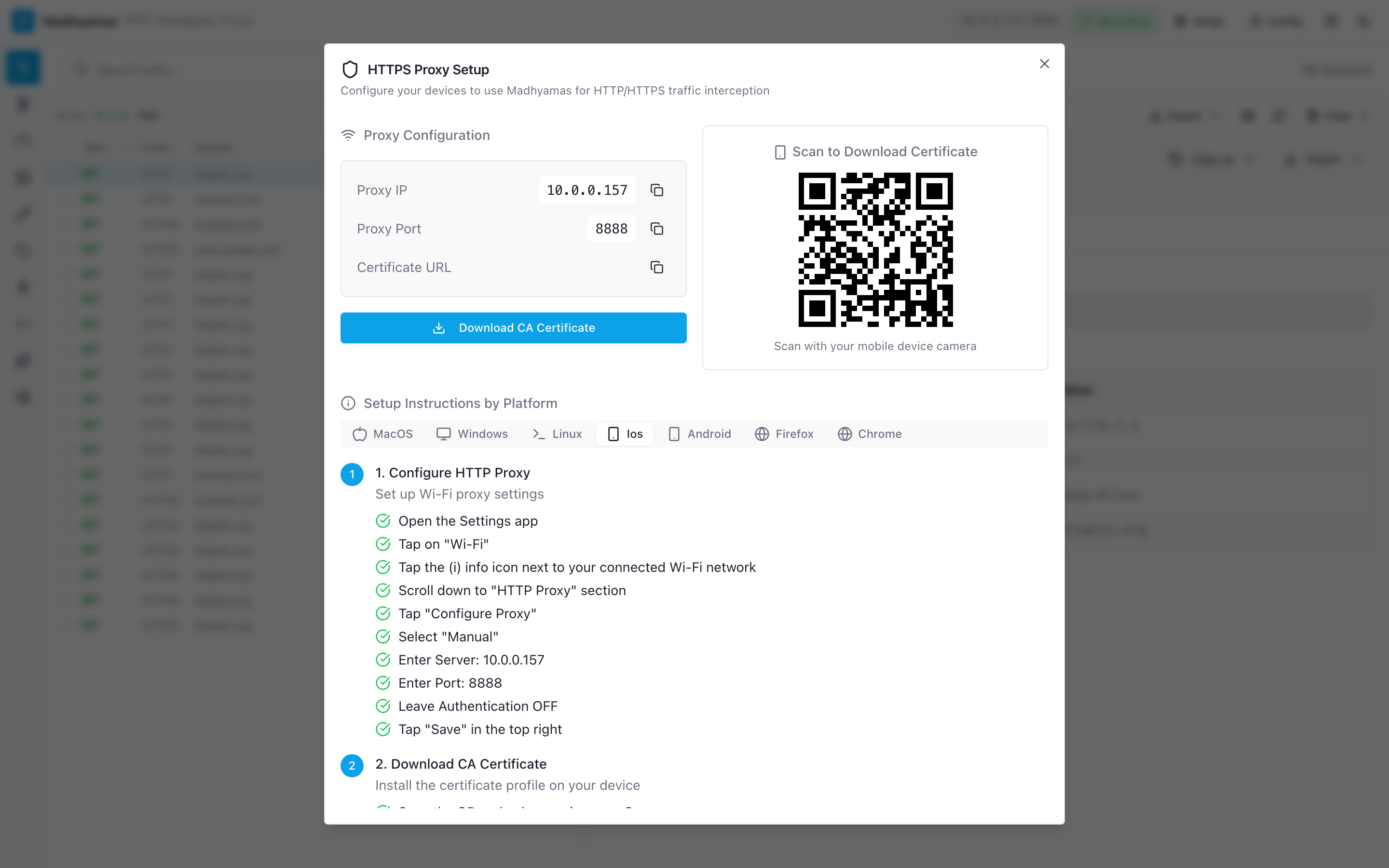
The dialog provides step-by-step instructions and a download button for the CA certificate. You can also install it manually using the platform-specific instructions below.
macOS
# Download the certificate
curl -o ~/Downloads/madhyamas-ca.pem http://localhost:3001/api/cert/ca

# Install and trust it
sudo security add-trusted-cert -d -r trustRoot \
  -k /Library/Keychains/System.keychain ~/Downloads/madhyamas-ca.pem
Or manually:
- Download the certificate from
http://localhost:3001/api/cert/ca - Double-click the
.pemfile to open it in Keychain Access - Find "Madhyamas Root CA" → right-click → Get Info → Trust → "Always Trust"
Windows
# Download the certificate
Invoke-WebRequest -Uri "http://localhost:3001/api/cert/ca" -OutFile "$env:USERPROFILE\Downloads\madhyamas-ca.pem"

# Install to trusted root store
Import-Certificate -FilePath "$env:USERPROFILE\Downloads\madhyamas-ca.pem" `
  -CertStoreLocation Cert:\LocalMachine\Root
Linux (Ubuntu/Debian)
curl -o /tmp/madhyamas-ca.pem http://localhost:3001/api/cert/ca
sudo cp /tmp/madhyamas-ca.pem /usr/local/share/ca-certificates/madhyamas-ca.crt
sudo update-ca-certificates
iPhone / iPad
- Open Safari on your device and visit
http://<your-computer-ip>:3001/api/cert/ca - When prompted, tap Allow to download the profile
- Go to Settings → Profile Downloaded → Install
- Go to Settings → General → About → Certificate Trust Settings → enable trust for Madhyamas Root CA
Android
- Download the certificate from
http://<your-computer-ip>:3001/api/cert/ca - Go to Settings → Security → Install a certificate → CA certificate
- Select the downloaded file
Android 7.0+
Apps don't trust user-installed CA certificates by default. To intercept HTTPS traffic from specific apps, you may need root access to install the certificate in the system store, or use the Madhyamas Android companion app.
Disabling HTTPS Interception
If you only need to inspect HTTP traffic, or if HTTPS interception is causing issues, you can disable it:
# Via CLI
madhyamas config update --intercept-https false

# Or start with the flag
madhyamas serve --no-https
When disabled, HTTPS traffic passes through the proxy as an opaque tunnel — Madhyamas can see the connection but not the content.
Certificate Pinning
Some mobile apps use certificate pinning — they hardcode the expected server certificate or public key and reject any proxy's CA certificate, even if it's signed by a trusted CA. This is a security feature that prevents man-in-the-middle interception.
If an app uses certificate pinning, you'll see 502 errors in the traffic list with TLS handshake failure messages like "TLS handshake failed: the client does not trust the proxy CA certificate."
What Is Pinning?
| Layer | Who checks | What it checks |
|---|---|---|
| System trust store | The operating system | "Is this CA on the approved list?" Installing the Madhyamas CA adds it to this list. |
| App pinning | The app itself | "Is this the exact certificate I expect?" The app rejects anything else, even if the OS trusts it. |
So even after installing the Madhyamas CA, a pinned app will refuse to connect.
Types of Pinning
| Type | Implementation | Bypass difficulty |
|---|---|---|
| Network Security Config | XML in APK | Easy — patch the XML |
| OkHttp CertificatePinner | Java/Kotlin code | Medium — smali patch or Frida |
| Custom TrustManager | Java/Kotlin code | Medium — smali patch or Frida |
| Native (BoringSSL/OpenSSL) | C/C++ in .so files | Hard — native hooking |
| Flutter | BoringSSL in libflutter.so | Hard — binary patching |
| Cronet | Native Google library | Hard — native hooking |
Bypass Options
There is no universal bypass — the right approach depends on the app and platform.
Android:
- Network Security Config (no root) — if the app uses an XML network security config, you can patch the APK to trust user CAs.
- APK patching (no root) — decompile the APK with
apktool, modify the smali to disable pinning, repackage, and sign. - Frida (root or gadget) — runtime hooking of the pinning code. Works for OkHttp, custom TrustManagers, and some native pinners.
- LSPosed/Xposed modules (root) — modules like JustTrustMe or TrustMeAlready disable common pinning implementations.
- Magisk CA installation (root) — install the Madhyamas CA in the system store so all apps trust it.
- Flutter apps — require binary patching of
libflutter.so; Frida can also work with the right script. - React Native apps — usually use OkHttp under the hood, so Frida OkHttp bypasses often work.
For exact commands and a decision matrix, see the Android certificate pinning bypass guide in the developer docs.
iOS:
- Jailbroken devices can use SSL Kill Switch or similar tweaks.
- Non-jailbroken devices generally require app-specific approaches; there is no general-purpose bypass.
Browsers:
- Most browsers don't use pinning and will work once the Madhyamas CA is installed. Some browsers pin a few high-value sites (e.g. Chrome pins Google properties), but those pins don't prevent intercepting other sites.
Using the Android Companion VPN App
For devices where manual proxy configuration is problematic, Madhyamas includes an Android companion app that creates a local VPN to route traffic through the proxy transparently. See Mobile Setup for build and setup instructions. Note that the companion app routes traffic but does not by itself bypass certificate pinning — you still need one of the bypass approaches above for pinned apps.
Regenerating the CA Certificate
If your certificate is compromised or you want to start fresh, delete the existing CA and restart Madhyamas:
# Stop Madhyamas
# Delete the CA certificate and key
rm ~/.madhyamas/certs/madhyamas-ca.pem
rm ~/.madhyamas/certs/madhyamas-ca-key.pem

# Restart — a new CA is auto-generated
madhyamas serve
You'll need to install the new CA certificate on all your devices again.
See also
- Getting Started — installation and first steps
- Mobile Setup — connecting phones and tablets
- Security Overview — CA key protection and the overall security model
- Configuration —
--no-httpsand HTTPS interception settings - Troubleshooting — certificate errors and pinning failures