
Getting Started with Enterprise
This guide walks you through setting up Madhyamas Enterprise for the first time. You'll configure a PostgreSQL database, enable authentication, bootstrap an admin user, and verify the installation.
Prerequisites
- PostgreSQL 16+ — shared storage for traffic, users, audit logs, and configuration
- Redis 7+ — required only for multi-instance deployment
- Rust 1.75+ or Docker — to build or run the binary
Single-instance mode
If you're running a single enterprise instance, Redis is optional. PostgreSQL is required for all enterprise features.
Option 1: Docker Compose (Recommended)
The fastest way to get started is with the multi-instance Docker Compose stack:
# Clone and start
git clone https://github.com/ShristiLabs/madhyamas.git
cd madhyamas
./startup-local.sh --tier enterprise
This starts:
- PostgreSQL on port
15432 - Redis on port
16379 - 2 Madhyamas instances on ports
14001and14002 - nginx load balancer on port
14000(API) and8888(proxy)
Default admin credentials: admin / testpass123
Change default credentials
The default password is for development only. Change it immediately in production by setting MADHYAMAS_ADMIN_PASSWORD.
Option 2: Build from Source
# Build with enterprise features (default)
cargo build --release -p madhyamas

# Start PostgreSQL (if not already running)
docker run -d --name madhyamas-pg \
  -e POSTGRES_USER=madhyamas \
  -e POSTGRES_PASSWORD=yourpassword \
  -e POSTGRES_DB=madhyamas \
  -p 5432:5432 \
  postgres:16

# Start Madhyamas
./target/release/madhyamas \
  --database-url postgres://madhyamas:yourpassword@localhost:5432/madhyamas \
  --enable-auth \
  --jwt-secret your-production-secret \
  --admin-username admin \
  --admin-password your-secure-password
First-Run Behavior
On first startup, Madhyamas Enterprise:
- Connects to PostgreSQL and runs schema migrations (tables, indexes, extensions)
- Bootstraps the admin user using
--admin-usernameand--admin-password - Generates a TLS CA certificate for HTTPS interception (or loads from
--ca-cert-file) - Starts the API server on port 3001 (or
--api-port) - Starts the proxy on port 8888 (or
--proxy-port)
If the admin user already exists (from a prior run or another instance), the bootstrap is a no-op.
Auto-generated password
If --admin-password is not set, Madhyamas generates a random password and logs it with a warning. Check the startup logs for:
Bootstrap: created admin user 'admin'. Auto-generated password (CHANGE IMMEDIATELY): <password>Installing a License
Enterprise features require a valid license file. Without one, Madhyamas runs in unlicensed enterprise mode (all features work but a warning is displayed).
madhyamas \
  --database-url postgres://... \
  --enable-auth \
  --jwt-secret your-secret \
  --license-file /path/to/license.json
License files are Ed25519-signed JSON documents. Obtain one from the Madhyamas license portal or contact your account representative.
See Licensing for details on license verification, seat management, and renewal.
Verifying the Installation
Health Check
# Simple health check (used by load balancers)
curl http://localhost:3001/health
# Output: OK

# Detailed health check (includes dependency status)
curl http://localhost:3001/api/health/detailed
Example response:
{
  "healthy": true,
  "version": "0.1.6",
  "uptime_secs": 3600,
  "tier": "enterprise",
  "auth_mode": "local",
  "auth_required": true,
  "dependencies": {
    "database": "ok",
    "redis": "ok",
    "license": "ok"
  }
}
Login Test
# Login via API
curl -X POST http://localhost:3001/api/auth/login \
  -H "Content-Type: application/json" \
  -d '{"username":"admin","password":"your-password"}'
Web UI
Open http://localhost:3001 in your browser. You should see the enterprise login screen:
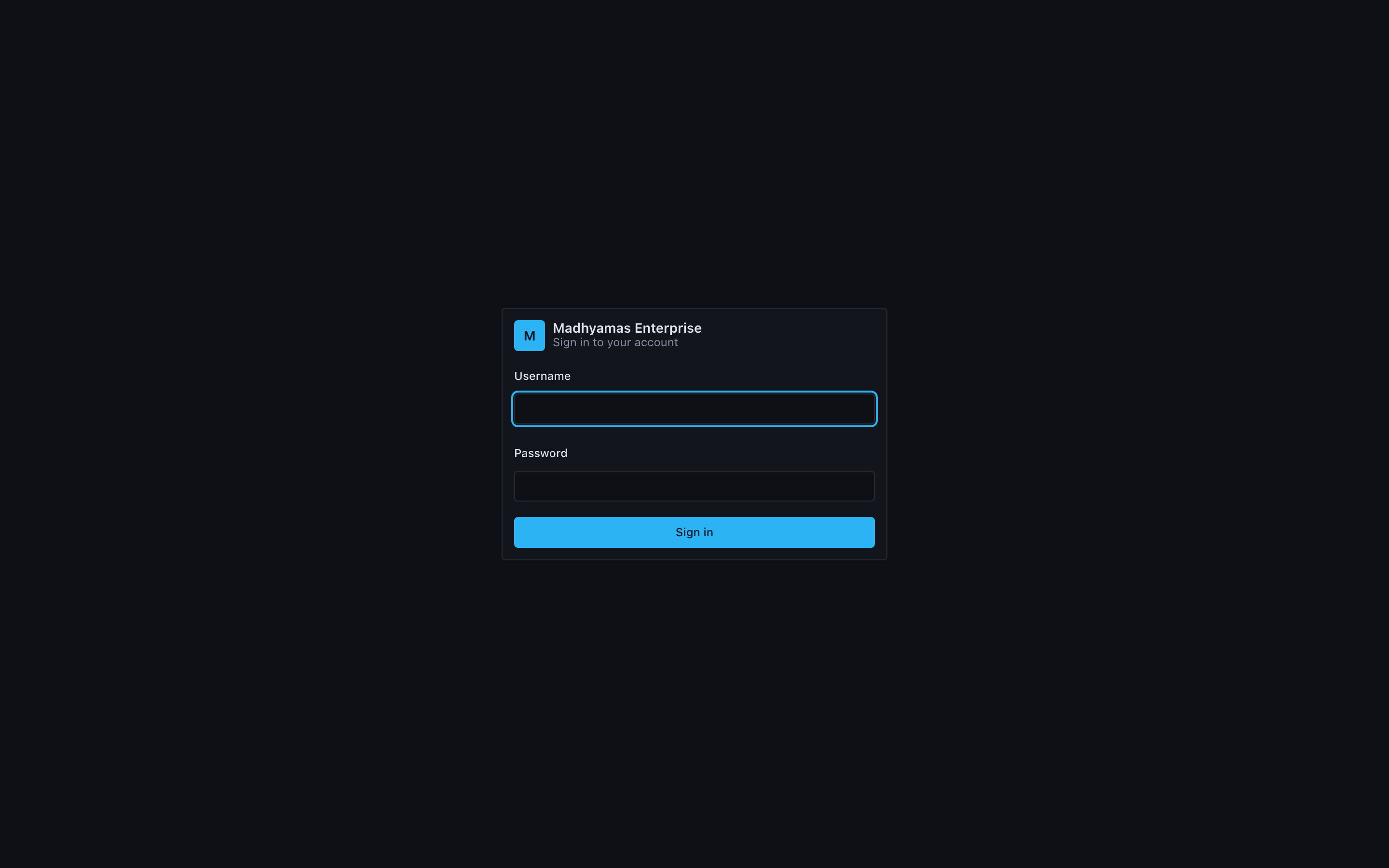
Log in with your admin credentials to access the full UI, including admin panels in the navigation rail.
Next Steps
- Authentication — Configure JWT, API keys, and SSO
- User Management — Create users and assign roles
- Licensing — Install and manage your license
- Multi-Instance Deployment — Scale horizontally with load balancing
- Configuration — All CLI flags and environment variables
See Also
- Enterprise Overview — Feature matrix and when to use enterprise
- Configuration — Complete CLI flag reference
- Troubleshooting — Common issues and fixes